
Quick start
Create, train and put your first AI chatbot live in a few minutes.
2 min readThis guide takes you from creating your chatbot to putting it live.
Create your chatbot
- Log in at chatbotmaker.fr.
- In My Projects, click New Project.
- Give your chatbot a name, then click Create.
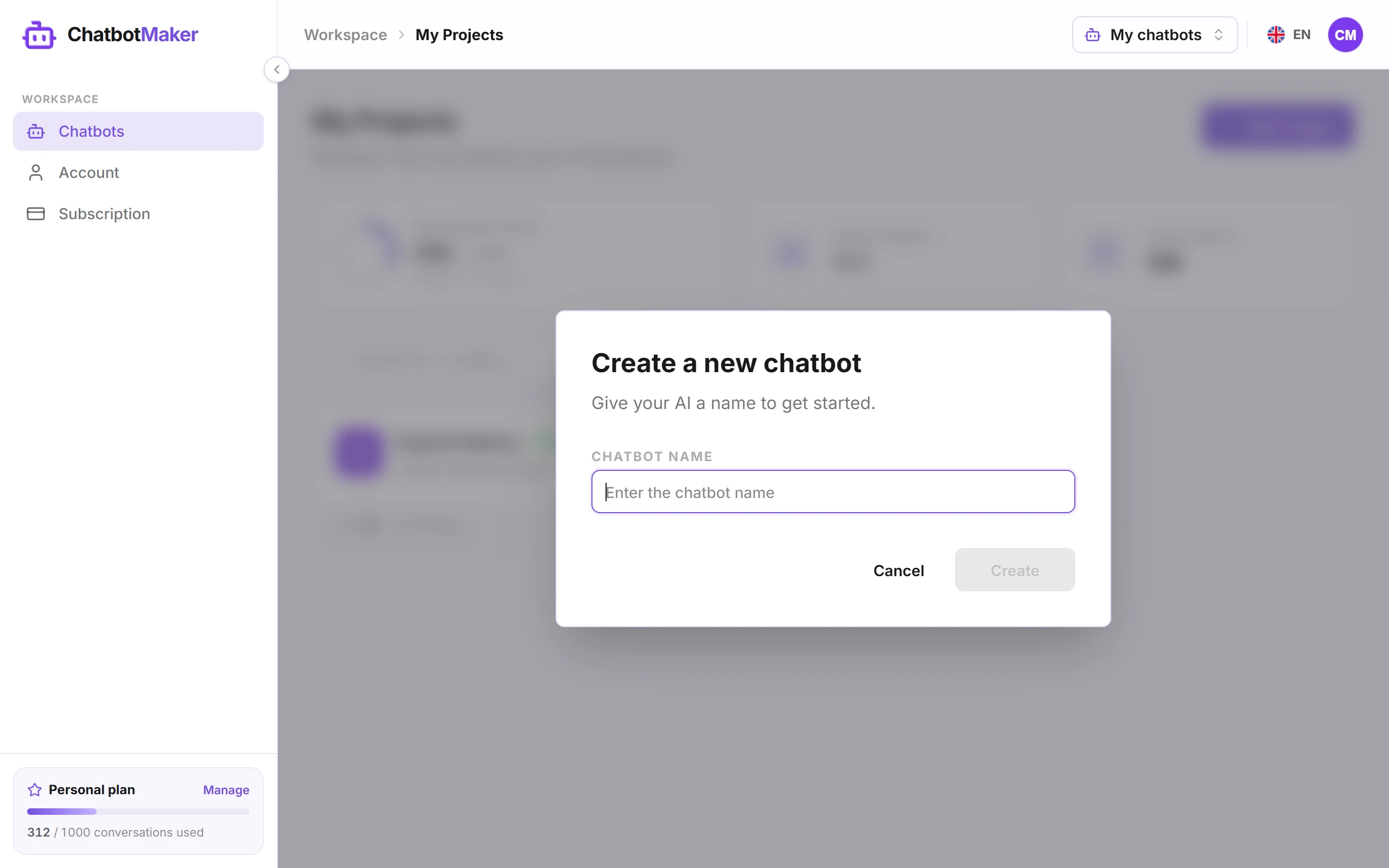
You land in your chatbot's workspace. The tabs on the left (Playground, Settings, Knowledge, Deploy…) match the next steps.
Give it knowledge
Your chatbot answers from the content you give it. Open the Knowledge tab and add one or more sources:
- Website: enter your website's address. To import the whole site, turn on the subpages option, click Discover, pick the pages to include, then Confirm. For a single page, click Add. See Train the chatbot on your website.
- Files: upload your documents (PDF, TXT, MD), up to 20 files at a time. See Add your documents.
- Questions / Answers: for exact answers to specific questions. You can also import a CSV or JSON file.
- Raw text: paste text directly (opening hours, terms, company overview…). See Precise answers: questions / answers and raw text.
Each source shows Syncing while it trains, then Synced once the chatbot can use it.
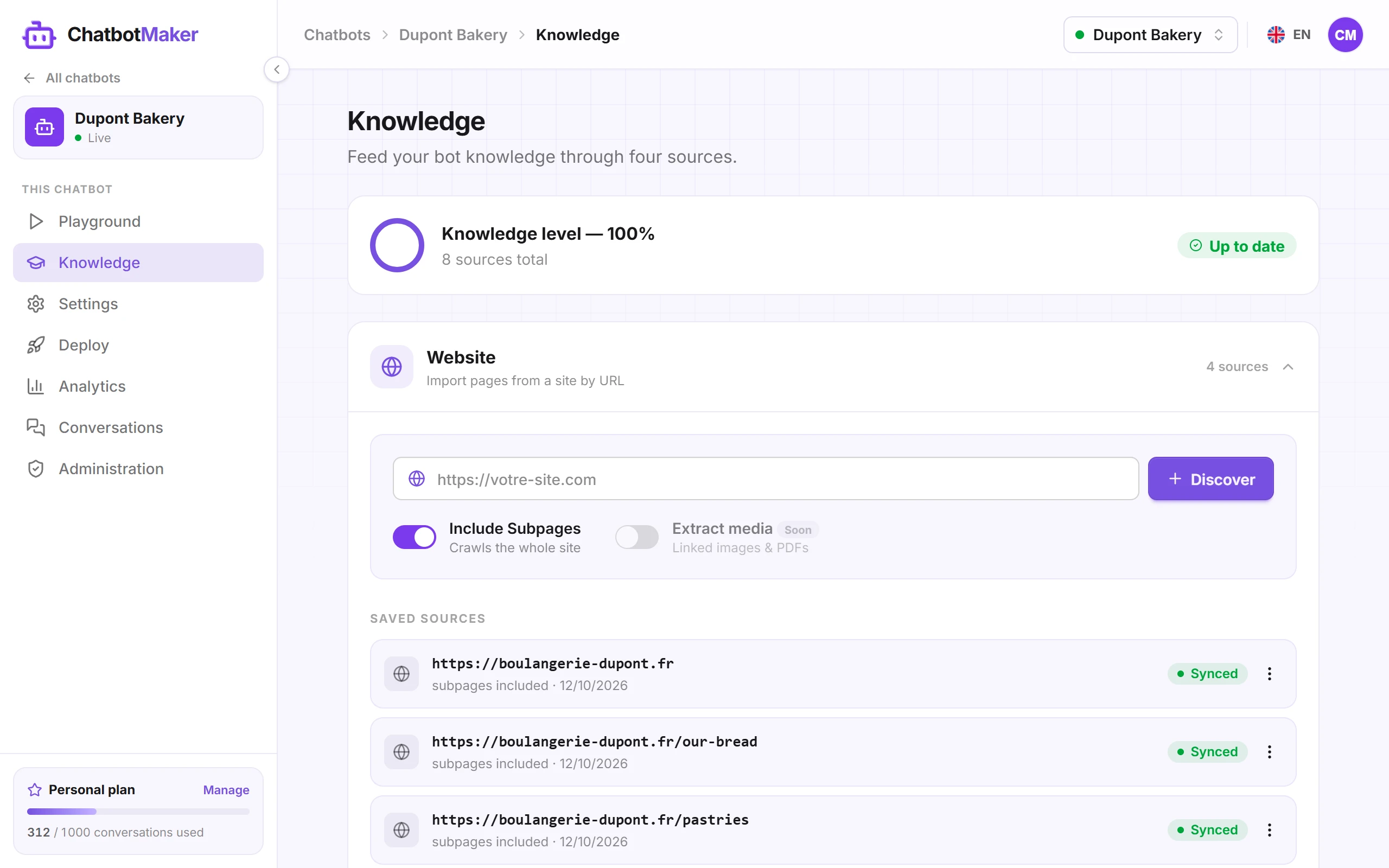
Tip: start with your website, it is usually the most complete source. Then add questions / answers wherever you want a precise answer.
Customize its look and behavior
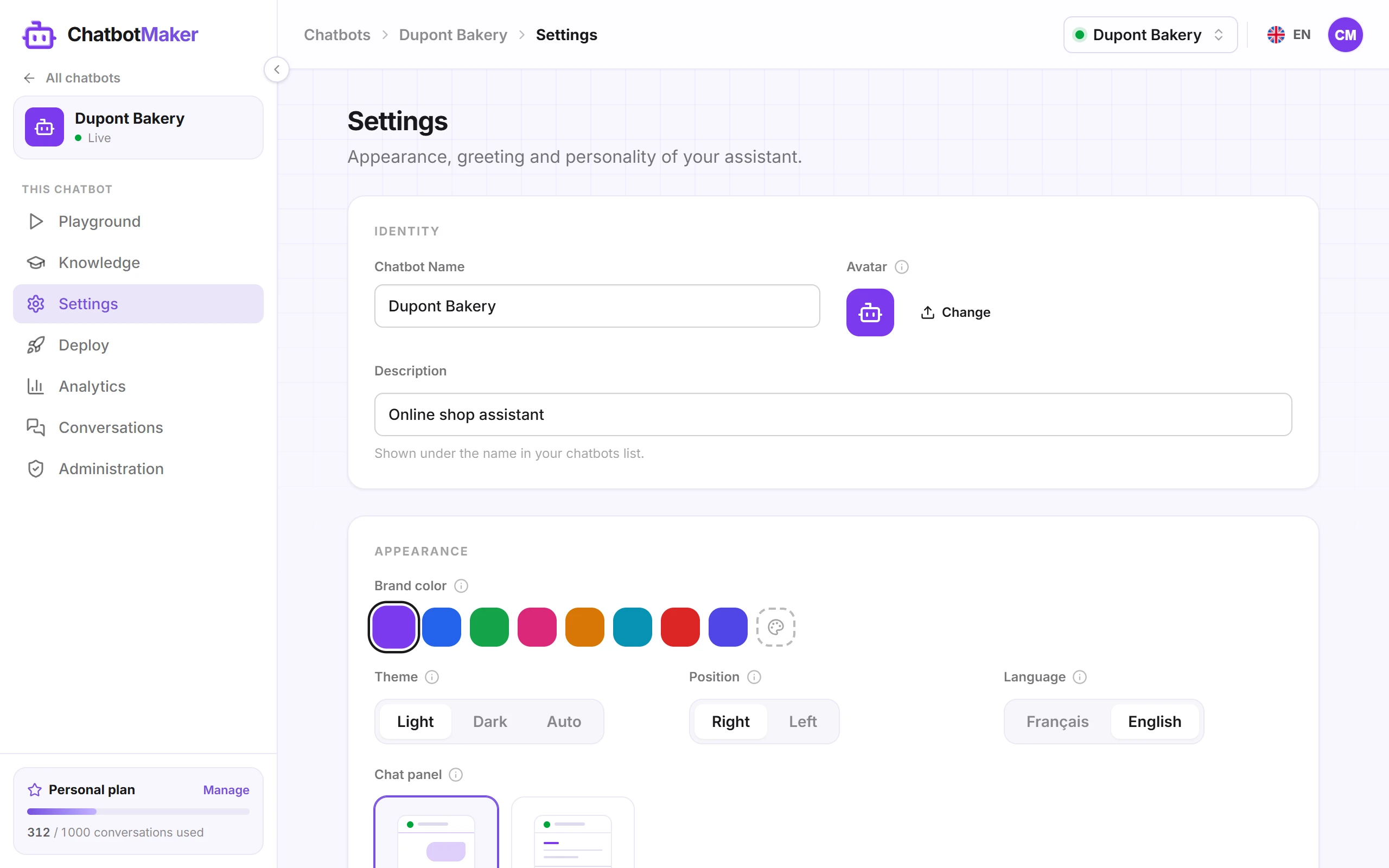
In the Settings tab you can set:
- Identity: name, avatar and brand color.
- Welcome message shown when the chat opens.
- Instructions: the chatbot's personality or your own guidelines (tone, topics to avoid…). See Personality, instructions and welcome message.
- Launcher: its style, its position on the page and the widget language. See Customize the widget's look.
Test it
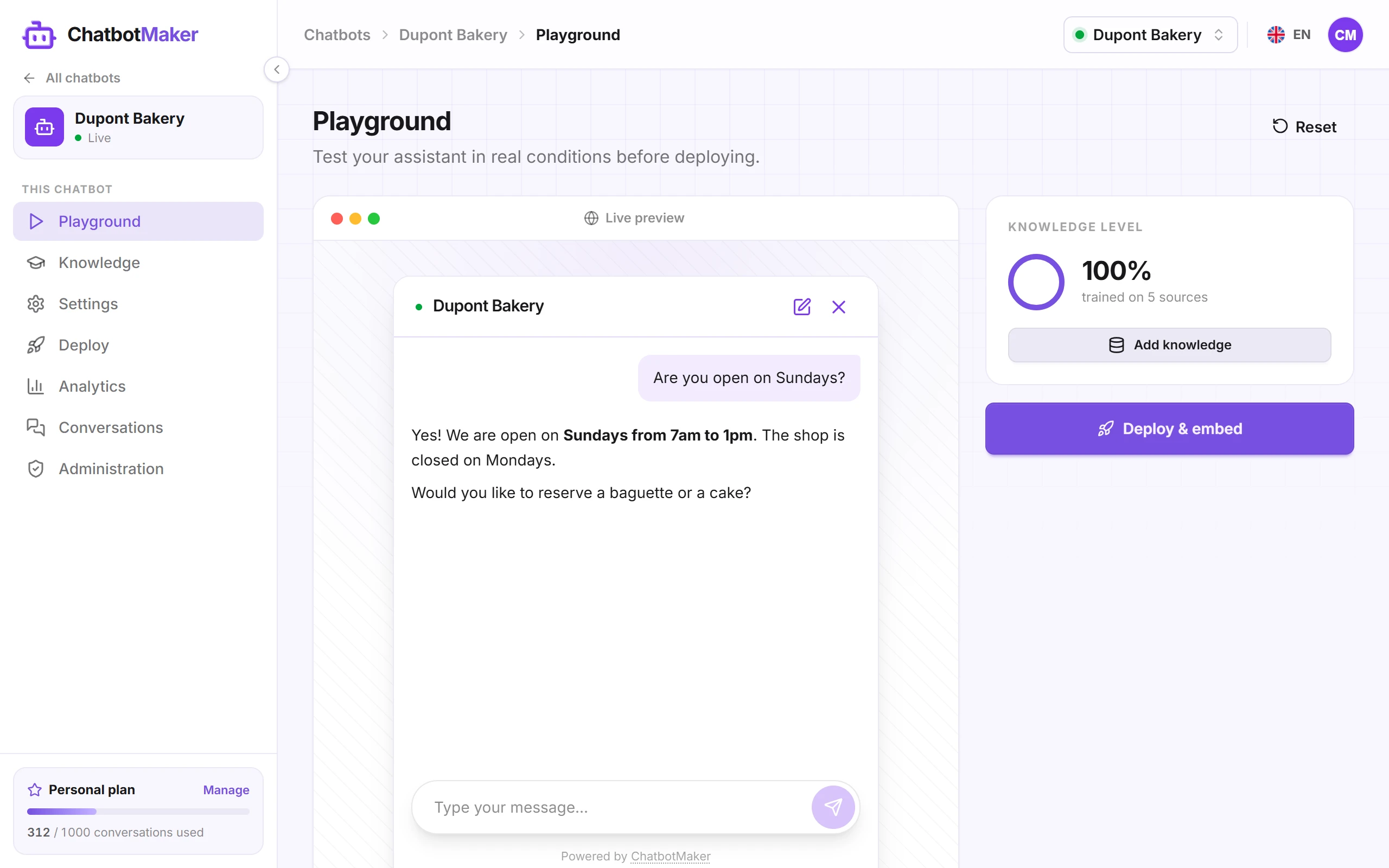
Open the Playground tab and ask the questions your visitors would ask. If an answer is incomplete, add the missing source in Knowledge and test again. See Test and fix answers.
Put it live
In the Deploy tab, click Deploy. Your chatbot goes Live and you can:
- install the widget on your website;
- share a link to a dedicated chat page;
- download a QR code.
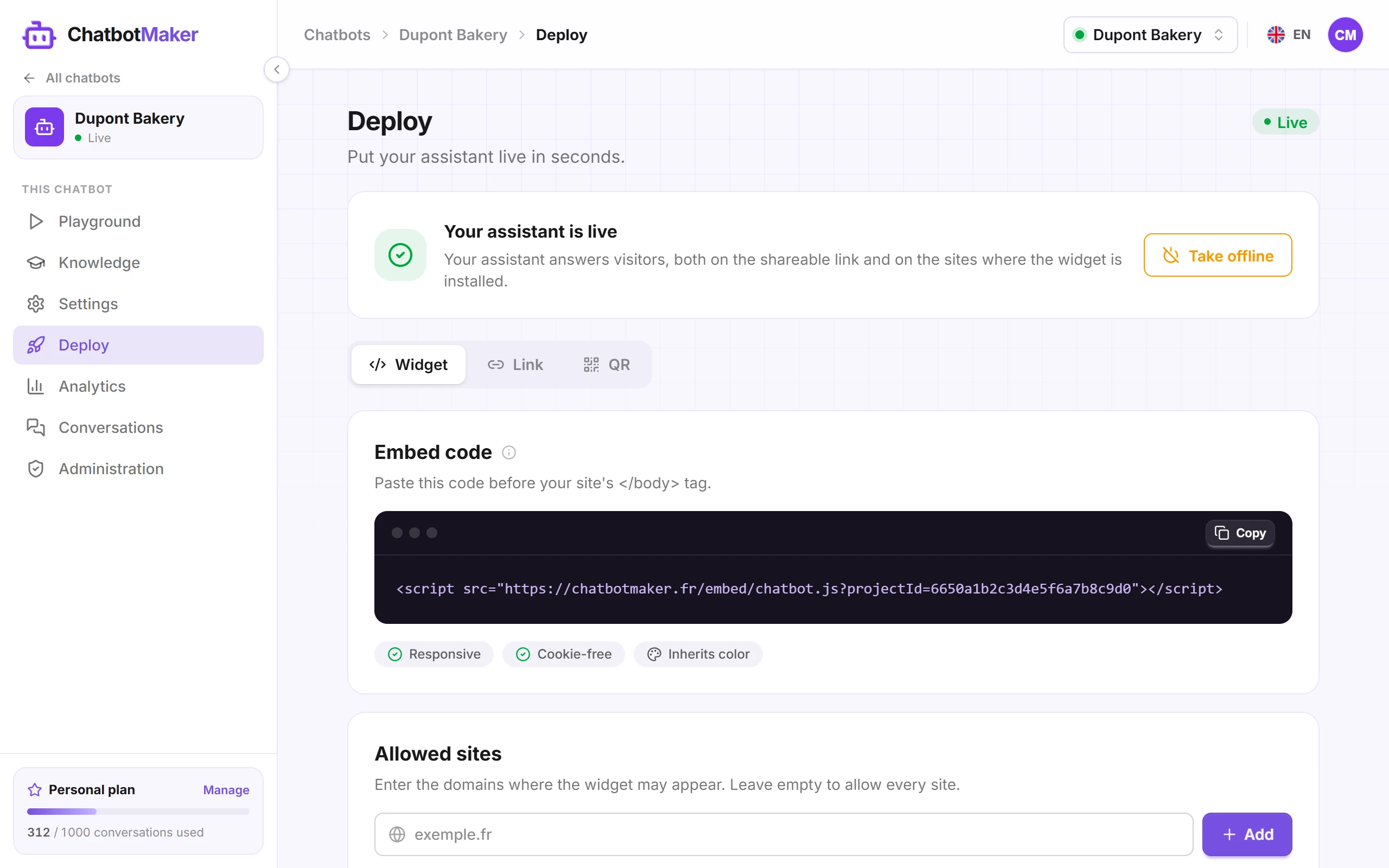
All of this is covered in Install the widget on your website and Share the chatbot with a link or QR code.