
Precise answers: questions / answers and raw text
Give your AI chatbot precise answers with question / answer pairs (typed in or imported from CSV or JSON) and raw text.
4 min readYour website and documents don't say everything, or not always clearly. Two sources let you write yourself what the chatbot should know:
- Questions / Answers: for the specific questions your customers often ask (delivery costs, lead times, returns…);
- Raw text: for information that isn't anywhere else (opening hours, team introduction, internal rules…).
Write questions / answers
- In the Knowledge tab, open the Questions / Answers section.
- In Entry label, name the group of questions, for example "Delivery". It only helps you find your way around; your visitors don't see it.
- Type the question as a customer would ask it, then its answer.
- Click Add a pair to add more questions to the same group.
- Click Save.
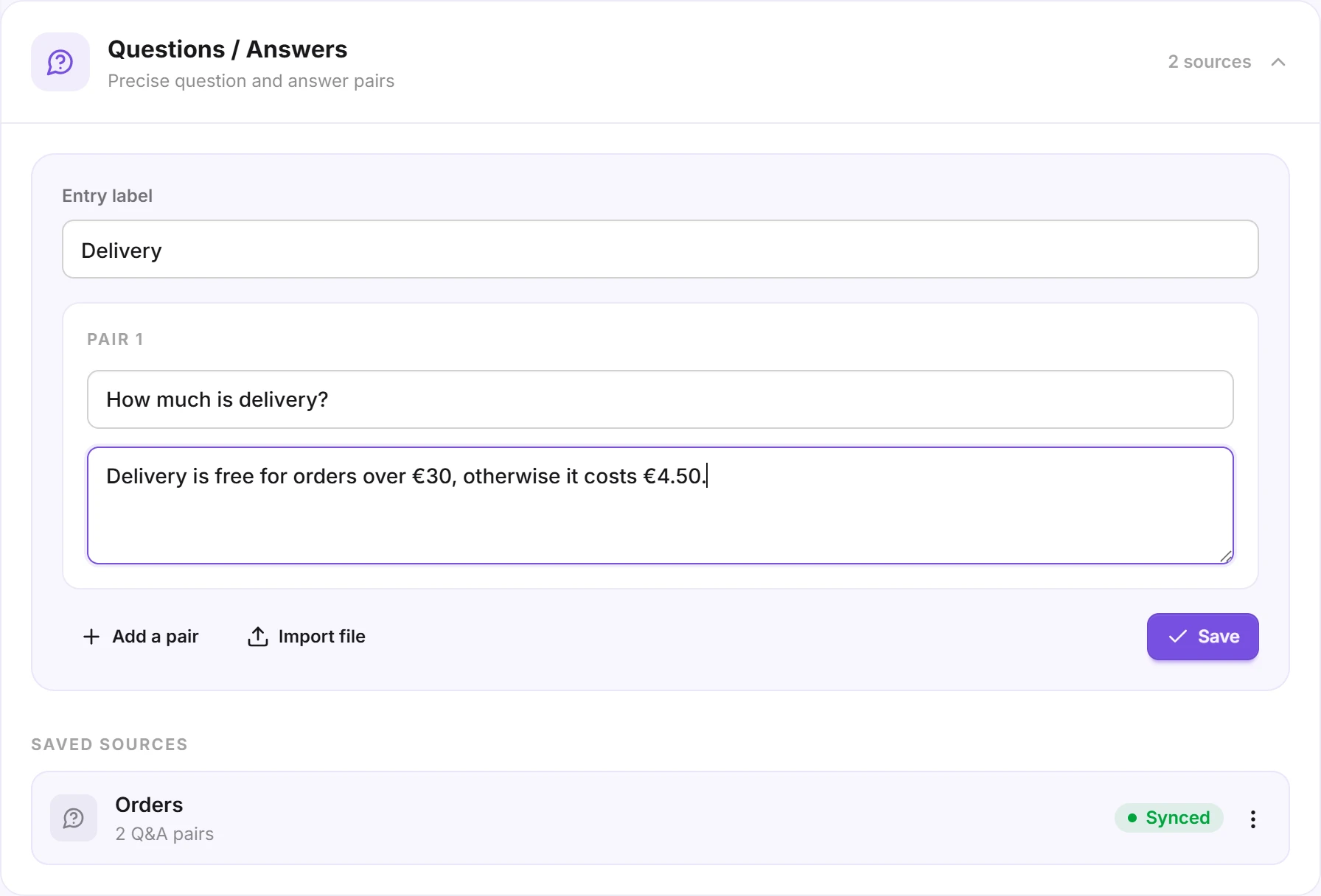
The entry label and every question and answer are required. The group then appears under Saved sources, with its number of pairs.
Tip: no need to write every variant of a question. The chatbot recognizes similar wordings: "How much does delivery cost?" will find the answer to "How much is delivery?".
Import your questions / answers from a file
Already have an FAQ in a spreadsheet? Click Import file and choose a CSV or JSON file.
The CSV file needs a header row with a question column and an answer column (or just q and a), in upper or lower case:
question,answer
How much is delivery?,"Delivery is free for orders over €30, otherwise it costs €4.50."
Do you deliver on Sundays?,No: we deliver Tuesday to Saturday.
From Excel or Google Sheets, rename your two column headers to question and answer, then save as CSV.
The JSON file must contain a list of objects:
[
  { "question": "How much is delivery?", "answer": "Delivery is free for orders over €30, otherwise it costs €4.50." }
]
The imported pairs replace the ones in the form, and the file name becomes the entry label if you hadn't typed one. Review them, then click Save: nothing is saved before that click. Rows without a question or an answer are skipped.
Add raw text
- Open the Raw text section.
- Name your text in Entry label (optional), for example "Team".
- Paste or type your text in Content.
- Click Save.
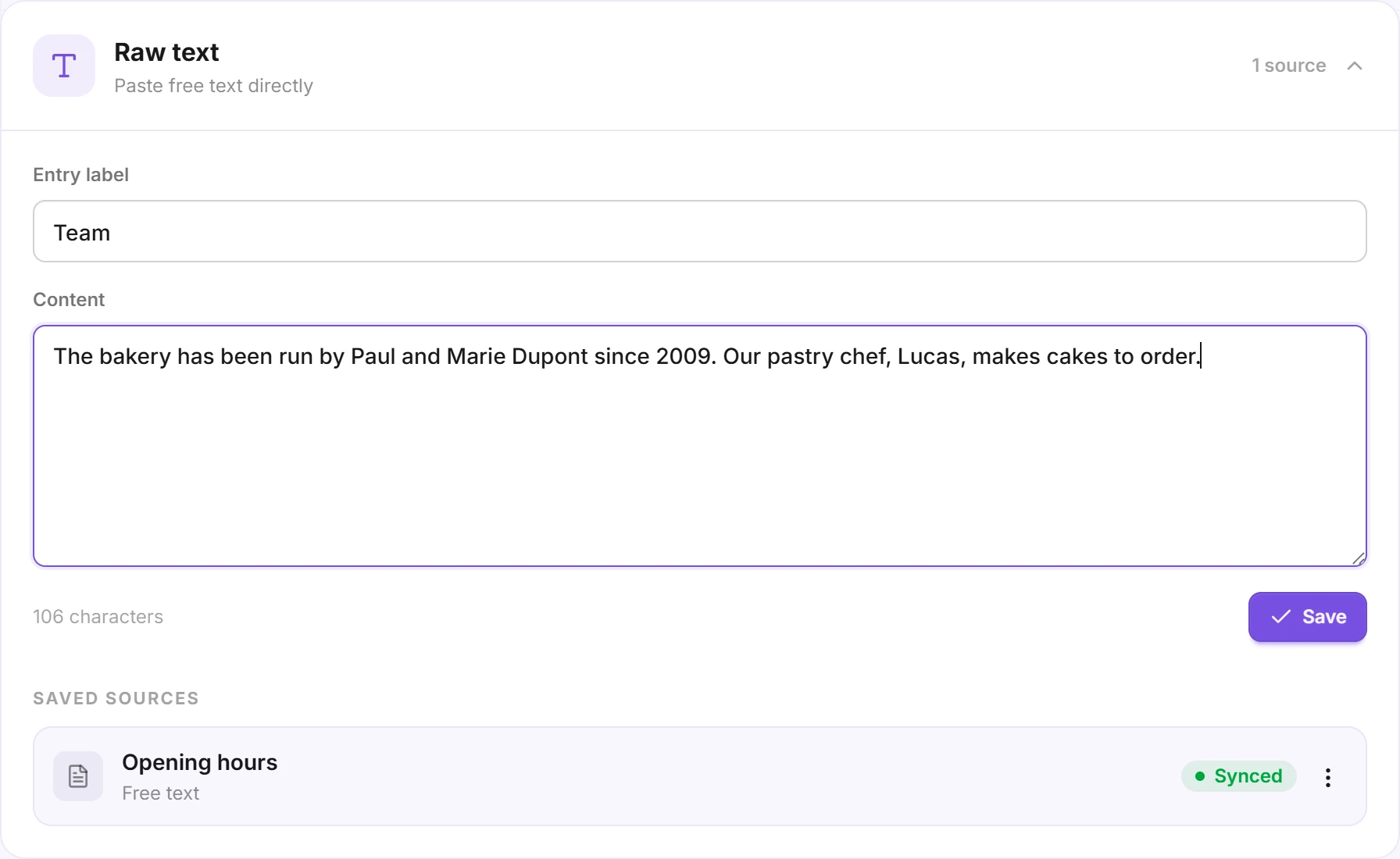
Raw text also suits the content of pages the chatbot can't read itself, such as a page reserved for logged-in customers.
Check the answers
Each group of questions and each text goes through Syncing, then Synced once the chatbot can use it. Then ask your questions in the Playground tab.
The chatbot relies on your answers but writes its own reply: it may rephrase it or add details from your other sources. If a piece of information must be given as is (a price, a lead time, a phone number), state it clearly in the answer.
Edit or delete
Open the ⋮ menu of a group of questions or a text:
- Edit reopens the form with its content. Make your changes, then click Save: the chatbot uses the new version right away.
- Delete removes it: the chatbot no longer uses it to answer.
- Select shows checkboxes so you can act on several items at once.
To add questions to an existing group, use Edit then Add a pair.
Good to know
- Each click on Save or Retrain counts as one training, however many pairs it covers. The number of trainings depends on your plan: type several questions before saving.
- An answer must stand on its own. The chatbot reads each pair separately: avoid "see above" or "as mentioned earlier".
- Keep your sources consistent. If an answer contradicts your website or documents (an old price, for example), the chatbot can't tell which to trust. Update or delete the outdated information.
- For long content that is already written, use your documents or your website instead.
Import doesn't work?
- "Couldn't read that file": check that it is a CSV or a JSON list, with no syntax errors.
- "No question/answer pairs found": check the header row; the columns must be named
questionandanswer(orqanda). - Accents garbled after import: save the file as CSV UTF-8 from your spreadsheet.