
Train the chatbot on your website
Import your website's pages so your AI chatbot answers from their content, and keep it up to date.
4 min readYour website is often the most complete source: offers, prices, opening hours, terms… Import its pages and your chatbot will answer from their content. Each imported page becomes a source of its own, which you can update or delete separately.
Open the Website source
In your chatbot, open the Knowledge tab. The Website section is the first in the list: click it to open it. All sections are collapsed when you arrive on the tab.
Enter your website's address
Enter your website's full address, starting with https://, for example https://www.example.com.
Then choose what to import with the Include Subpages option:
- on (the default): the button reads Discover and explores your site to list its pages;
- off: the button reads Add and imports only the page you entered.
Choose the pages to import
Click Discover. The pages found appear one by one, all ticked.
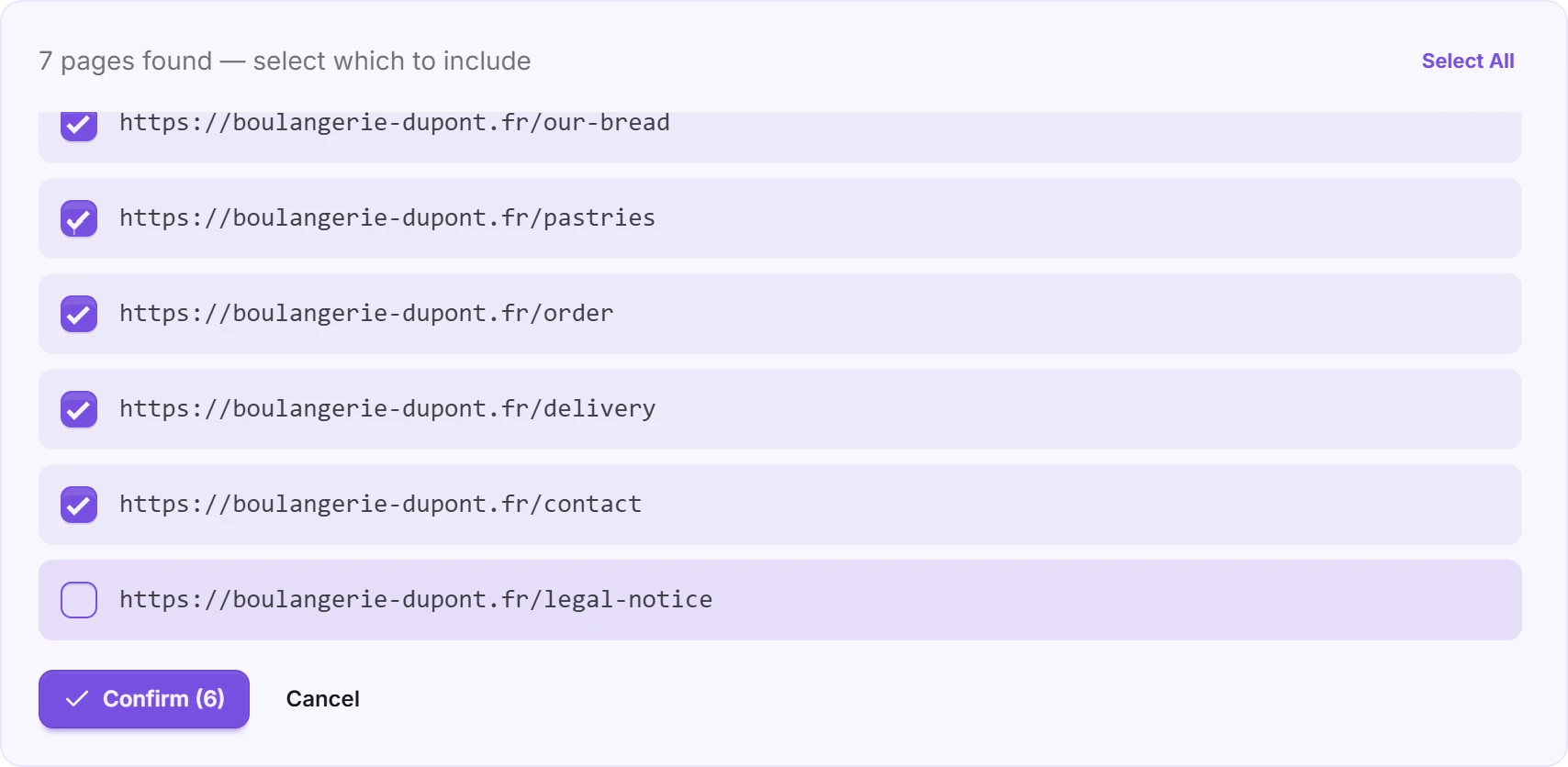
Untick the pages that are of no use to your visitors (legal notice, empty pages, old news…), or use Deselect All and tick only the ones you want. Finally, click Confirm: the number in brackets shows how many pages will be imported.
Discovery starts from the address you entered and follows your site's links:
- it stays on the same domain:
example.comandwww.example.comcount as two different sites, so enter the address your site really uses; - it respects your site's
robots.txtfile; - it stops at 200 pages.
Tip: for a large site, start with the pages that answer your customers' questions (products, prices, delivery, FAQ). A chatbot fed with useful pages answers better than one fed with the whole site.
Follow the training
Each imported page appears under Saved sources, with its status:
- Pending: the page is waiting its turn;
- Syncing: the page's content is being read;
- Synced: the chatbot can use the page.
Failed means the page couldn't be read, often because the page couldn't be reached at that moment. Run it again with Retrain (see below).
The Knowledge level banner at the top of the tab shows the share of your sources that are ready. You can leave the page while training runs, it carries on without you. Once your pages are synced, ask a few questions in the Playground tab to check the answers.
Click a synced page to see, in a panel on the right, the text the chatbot took from it. The page's links appear there with their full address, so the chatbot can share them with your visitors.
Update after changing your website
The chatbot keeps the pages' content as it was when they were imported: it doesn't re-read your site on its own. After a change, open the ⋮ menu of the page concerned:
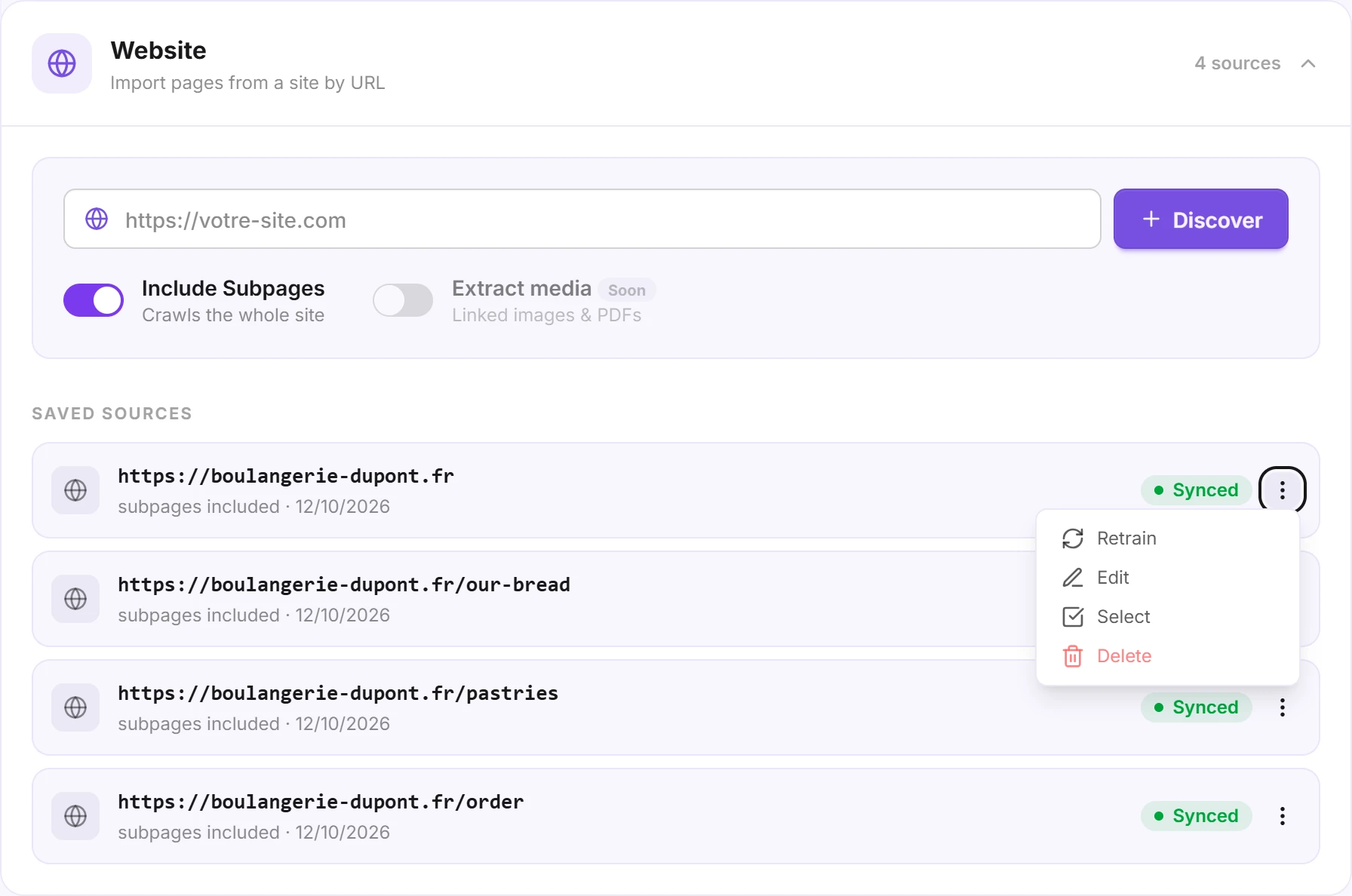
- Retrain re-reads the page and updates what the chatbot knows.
- Edit lets you change the page's address.
- Delete removes the page: the chatbot no longer uses it to answer.
- Select shows checkboxes so you can Retrain or Delete several pages at once.
Added pages to your website? Run Discover again with the same address and confirm: pages already imported are skipped, only the new ones are added.
Good to know
- Each click on Confirm, Add or Retrain counts as one training, however many pages it covers. The number of trainings depends on your plan: group your pages rather than importing them one at a time.
- Only the pages' text is read. Images and linked PDFs are not imported: add your documents in the Files source.
- Pages behind a password or a customer account can't be reached. Copy their content into the Raw text source if the chatbot needs to know it.
- Websites built with JavaScript (React, Vue…) are supported: their pages are rendered as in a browser before being read.
Discovery finds no pages?
If the crawl ends empty, the message "No pages found on this site" appears. In that case:
- Check that the address opens in your browser without logging in.
- Try with or without
www, depending on which address your site redirects to. - Check that your
robots.txtfile doesn't block crawling. - As a last resort, turn off Include Subpages and add your pages one at a time with Add.