
Add your documents
Train your AI chatbot on your PDF, Word, PowerPoint, Excel, TXT or Markdown documents: catalogs, price lists, terms of sale, procedures…
4 min readCatalogs, price lists, terms of sale, product sheets, internal procedures: much of what your customers ask about is in your documents. Import them and your chatbot will answer from their content. Each imported file becomes a source of its own.
Prepare your documents
The chatbot accepts six formats:
- PDF, as long as its text can be selected;
- Word (.docx);
- PowerPoint (.pptx);
- Excel (.xlsx);
- TXT, saved as UTF-8;
- MD (Markdown).
Each file can be up to 50 MB.
Is your document in Google Docs, Google Sheets or Pages? Download it as Word, Excel or PDF (File menu), then import that file. An old .doc or .xls file? Save it again as .docx or .xlsx.
Tip: a scanned PDF is an image: it contains no text the chatbot can read, and it is refused. To check, open it and try to select a sentence. If you can't, run it through a text recognition (OCR) tool first.
Choose the files
- In your chatbot, open the Knowledge tab, then the Files section.
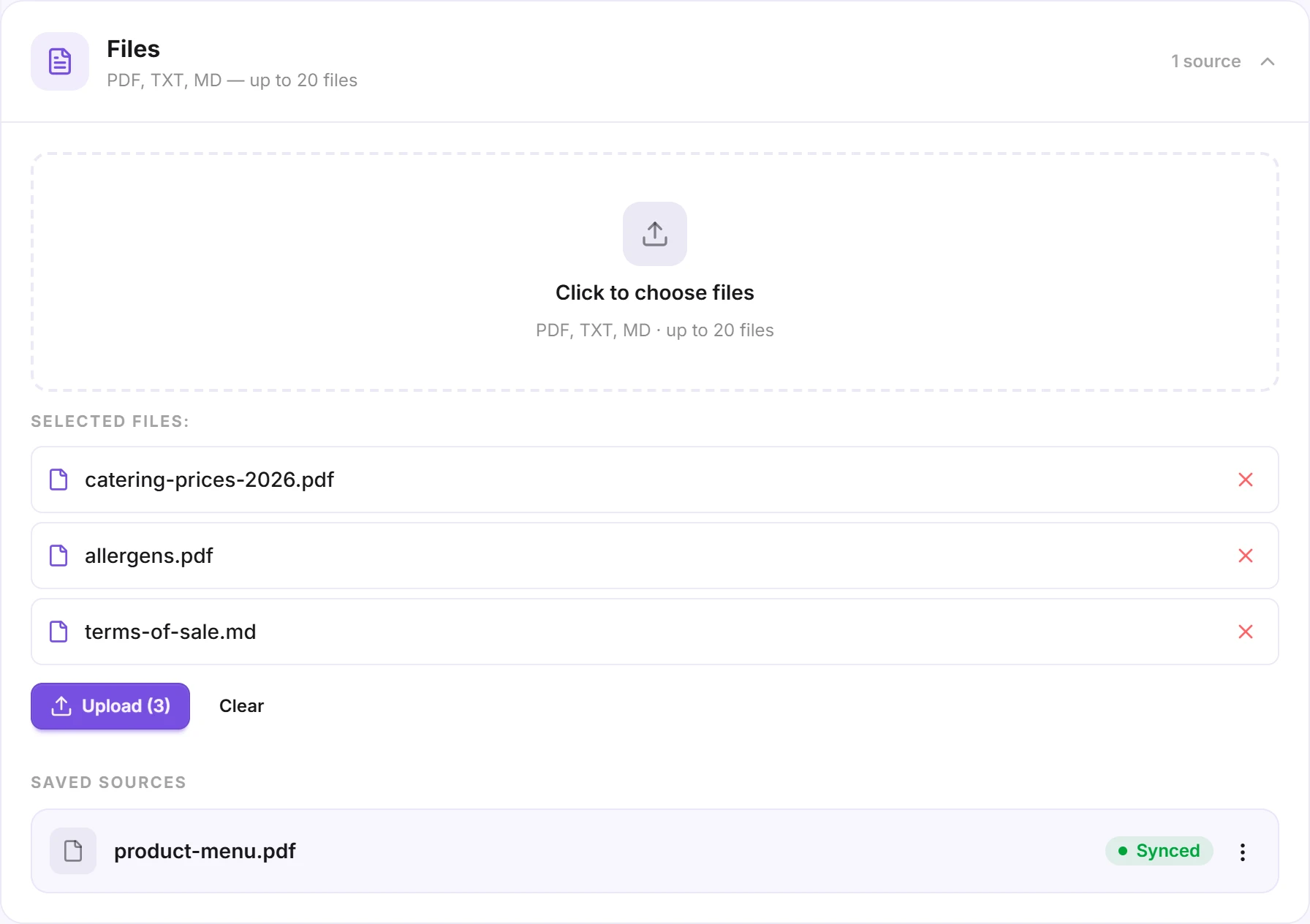
- Click Click to choose files and select one or more documents, up to 20 at a time.
The chosen files are listed under Selected files. Click the area again to add more, click the cross to remove one, or click Clear to empty the list.
Start the import
Click Upload: the number in brackets shows how many files will be imported.
Each file then appears under Saved sources, with its status:
- Pending: the file is waiting its turn;
- Syncing: its content is being read;
- Synced: the chatbot can use it.
Failed means the file couldn't be read (see below). You can leave the page while training runs, it carries on without you. Once your files are synced, ask a few questions in the Playground tab to check the answers.
See what the chatbot read
Click a synced file under Saved sources: a panel opens on the right with the Extracted text, exactly what the chatbot read, and its number of characters. Tables from your Word, PowerPoint and Excel files show as tables. If a piece of information is missing from this text, the chatbot can't answer about it.
Click the file again, or ✕, to close the panel.
Replace a document with a new version
The chatbot keeps the file's content as it was when it was imported. When your document changes:
- Open the old version's ⋮ menu and click Delete: the chatbot no longer uses it to answer.
- Import the new version as in step 2.
Always delete the old version before importing the new one: two files with the same name replace each other.
To delete several documents at once, choose Select in the ⋮ menu, tick the files, then click Delete.
In the same menu, Retrain re-reads the file already imported: it helps to rerun a failed file, but it doesn't pick up a new version of your document.
Good to know
- Each click on Upload or Retrain counts as one training, however many files it covers. The number of trainings depends on your plan: import your documents together rather than one at a time.
- Images are read on a paid plan. The text and tables they contain are transcribed and other images are described, up to 20 images per file. On the free plan, only text is read.
- Word, PowerPoint and Excel tables keep their rows and columns. In a PDF, they are read as running text: if a piece of information only makes sense with its layout (a complex price grid, for example), also add it as questions / answers.
- Long documents are fine: they are split into passages, and the chatbot only uses the ones that answer the question asked.
- Is the content already on your website? Import it from there instead, see Train the chatbot on your website.
A file failed?
- Scanned or image-only PDF: it contains no text. Run it through an OCR tool, or copy its content into the Raw text source.
- Password-protected file: save an unprotected copy, then import that.
- TXT file: save it again as UTF-8 (in Notepad: File → Save as, encoding UTF-8).
Then delete the failed file and import the fixed version.