
Customize the widget's look
Name, avatar, color, theme, position, language and launcher button: make your AI chatbot's widget match your website.
3 min readYour chatbot should look like part of your website, not a tool bolted on top. All appearance settings are in the Settings tab, split into three cards: Identity, Appearance and Launcher button.
Every change is saved automatically (Saved appears at the top of the screen) and applies to your website right away: no need to copy the embed code again.
Choose the name and avatar
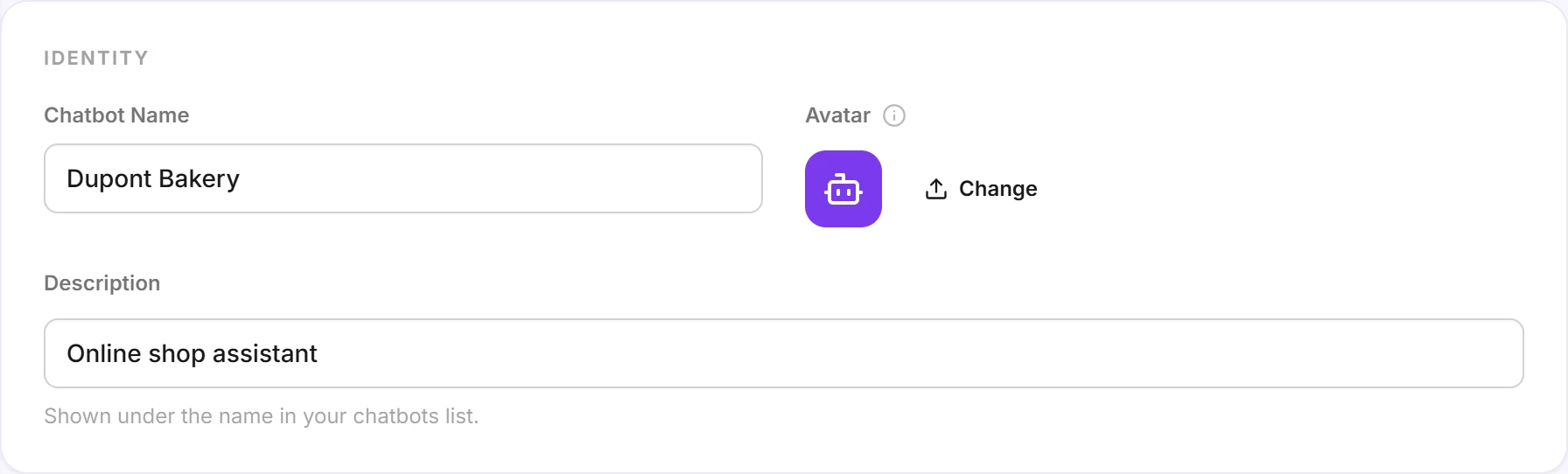
- Chatbot Name: shown at the top of the chat window, next to the answers and in the teaser bubble. The chatbot also introduces itself by this name.
- Avatar: click Change and pick a PNG, JPG or WebP image under 5 MB. It is cropped to a square and scaled down to 128 × 128 pixels: prefer a square image with your logo centered. Remove brings back the default icon.
- Description: only you can see it, under the chatbot's name in your chatbots list.
Set colors and layout
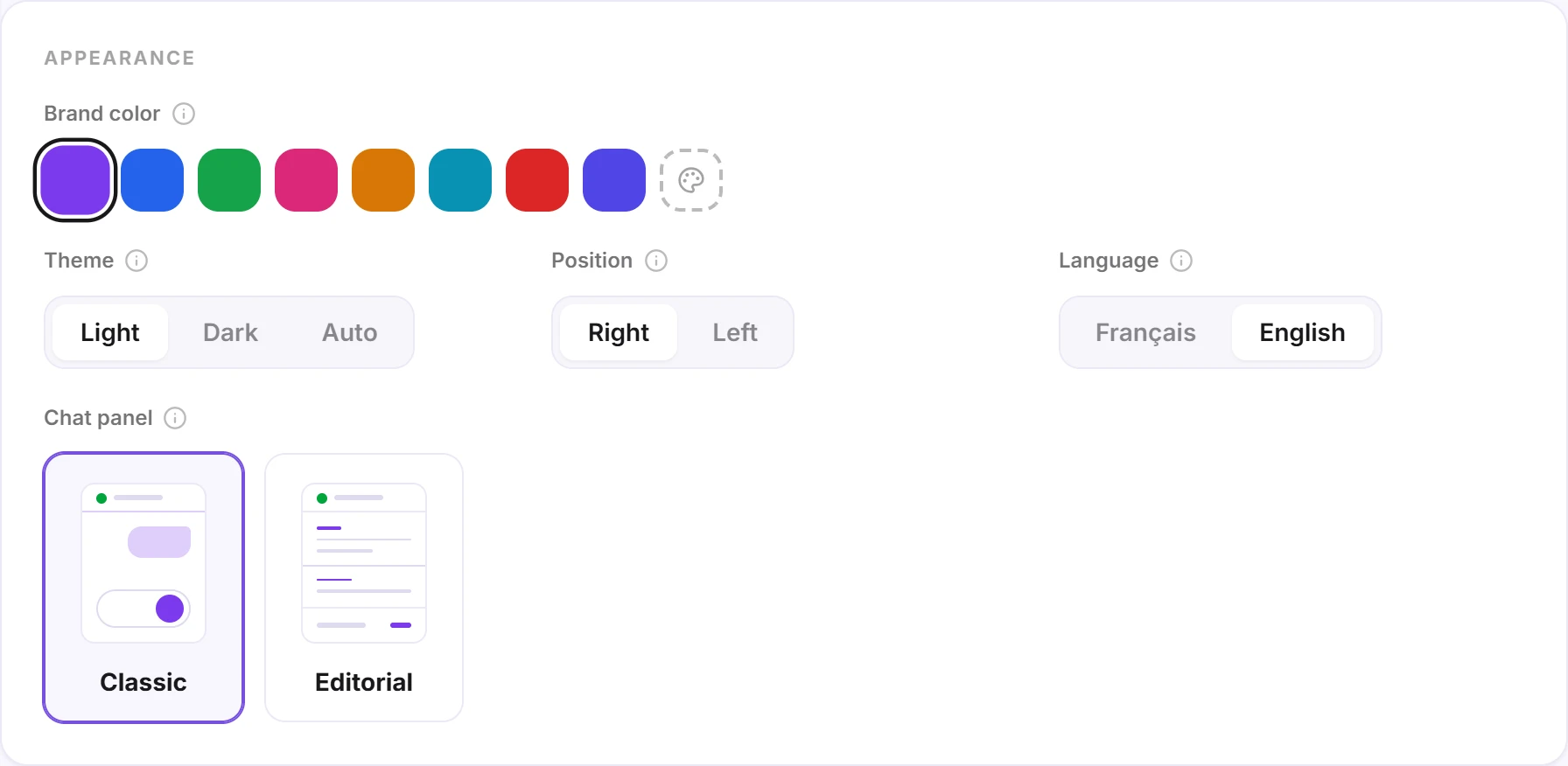
- Brand color: the color of the launcher, links and your message bubbles. Pick one of the eight suggested colors, or click the palette to enter your brand's exact color.
- Theme: Light or Dark sets the widget's background. Auto follows each visitor's device light or dark setting.
- Position: Right or Left, the corner of the page where the launcher and chat window appear. Pick the free corner if your site already shows something at the bottom right (cookie banner, back-to-top button…).
- Language: the interface language (launcher, labels). It doesn't change the language of the answers: the chatbot always replies in the visitor's language.
- Chat panel: the layout of the chat once open. Classic shows messages in bubbles; Editorial shows them without bubbles, full width, separated by a line.
Choose the launcher button
The launcher button is what your visitors see before opening the chat. The Preview below the choices shows how it looks on a page.
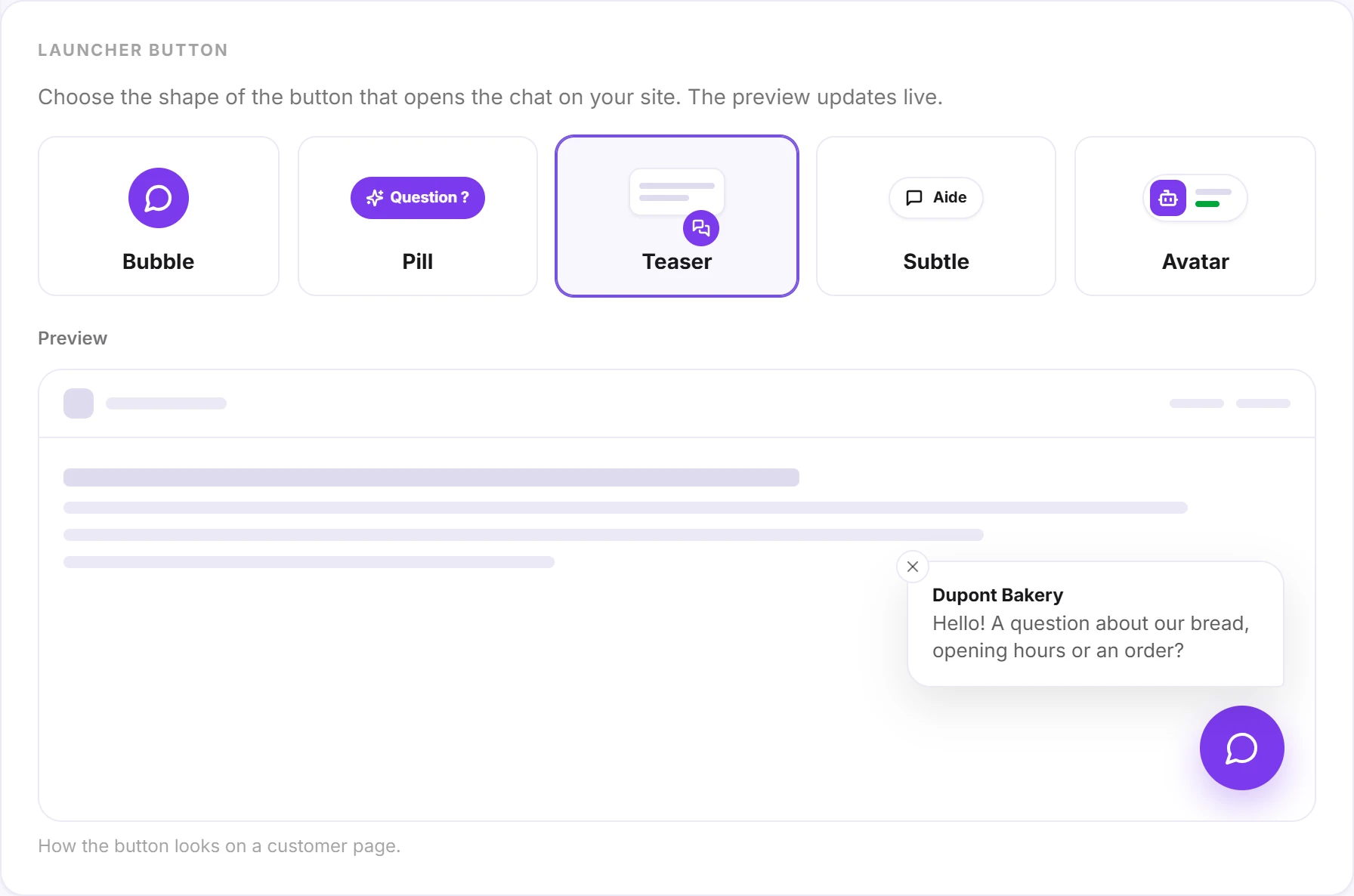
- Bubble: the classic round button, discreet.
- Pill: a button with text, more explicit. Type that text under Button label (24 characters max); left empty, it reads "Any questions?".
- Teaser: the bubble, plus your welcome message appearing next to it 4 seconds after the visitor arrives. If they close the message or open the chat, the teaser doesn't come back during their visit.
- Subtle: a plain button that blends into your site; the color only shows on hover.
- Avatar: your assistant's avatar with an "Online" label.
Tip: the Teaser catches the eye without getting in the way. It reuses your welcome message, so write a short, inviting one: see Personality, instructions and welcome message.
Check how it looks
Open the Playground tab and click Reset to reload the preview with your new settings. Once the widget is installed, also check it on your website, on desktop and on mobile.
Good to know
- On mobile, the chat opens full screen to stay readable.
- The brand color may be adjusted slightly to stay readable: lightened if it's too dark for the dark theme, darkened if it's too light for the light theme.
- To install the widget on your website, see Install the widget on your website.