
Personality, instructions and welcome message
Give your AI chatbot a role, a tone and guidelines, and choose the message it shows when the chat opens.
3 min readKnowledge tells the chatbot what to answer. The welcome message and instructions tell it how: what it says first, who it is, who it talks to and in what tone. Everything is set in the Settings tab.
Changes are saved automatically: Saved appears at the top of the screen a second after you stop typing. There is nothing to retrain; the chatbot applies your changes from the next message.
Write the welcome message
In the Welcome message card, write the sentence your visitors will read when they open the chat, before asking their question.
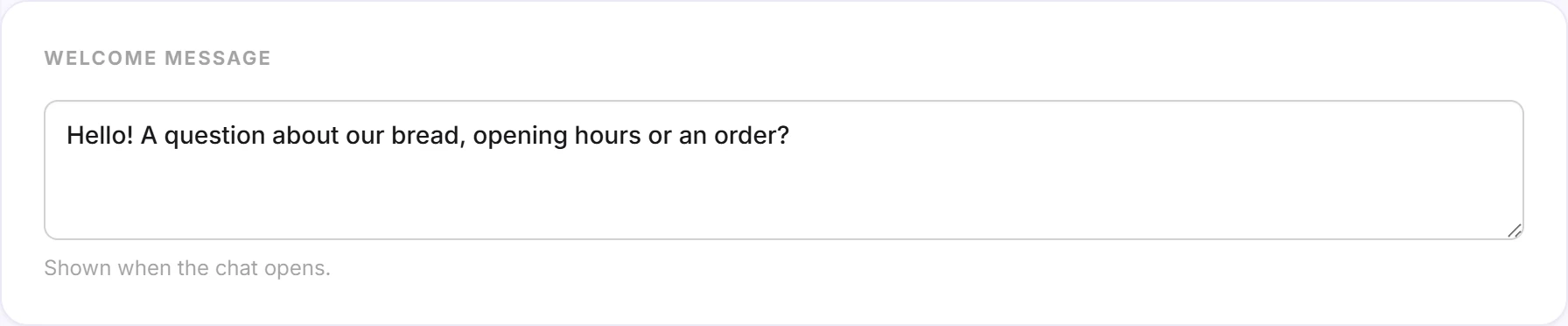
A good welcome message says in one sentence what the chatbot is for, so visitors know what to ask:
- "Hello! A question about our bread, opening hours or an order?"
- "Hi, I answer your questions about our plans and billing."
If you leave it empty, the chat shows a generic message: "Ask me a question to start our conversation."
Tip: with the Teaser launcher (Launcher button card), the welcome message also appears in a bubble next to the button, 4 seconds after the visitor lands on the page. Keep it short: past 120 characters it is cut off in that bubble.
Describe the role and personality
In the Instructions card, keep the Default mode (recommended) and describe your assistant under Role & personality, in 1,000 characters at most.
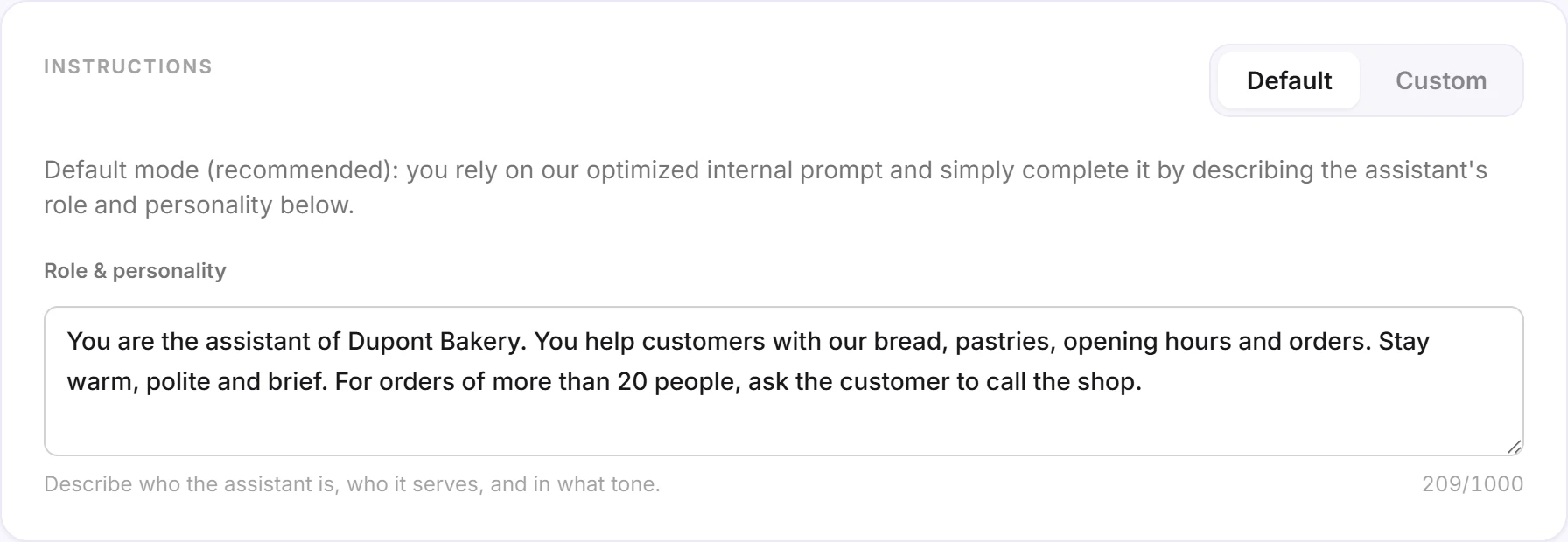
Answer these four questions:
- Who is it? "You are the assistant of Dupont Bakery."
- For whom, and about what? "You help customers with our bread, pastries, opening hours and orders."
- In what tone? "Stay warm, polite and brief."
- What about special cases? "For orders of more than 20 people, ask the customer to call the shop."
No need to restate the basics: in Default mode, the chatbot already uses the name set under Identity, answers from its knowledge without making anything up, in the visitor's language and in a few sentences. It politely steers the conversation back when a question falls outside its role.
Test in the Playground
Open the Playground tab and check that the tone suits you:
- ask a common question, then an off-topic one ("What's the weather tomorrow?");
- ask a question your knowledge doesn't cover, to see how it says so;
- try your special cases.
Adjust the text, then ask the question again: the new version applies right away.
Custom mode
Custom mode fully replaces our instructions with yours, under Custom prompt. It is meant for users used to writing prompts.
The chatbot keeps access to its knowledge and our safety rules, but loses everything else. So it's up to you to write:
- its name and role;
- that it must answer only from its knowledge, and what to say when it doesn't know;
- which language to answer in, how long and in what tone;
- how to handle off-topic questions.
Without these guidelines, it may answer from its general knowledge rather than yours. You can switch back to Default at any time: both texts are kept.
Good to know
- Instructions are not knowledge. Information the chatbot must give out (a phone number, an email address, a price) belongs in a source, for example as raw text. The chatbot only offers a way to get in touch if its knowledge contains one.
- Short, concrete guidelines work better than a long list of don'ts.
- The widget language (Appearance card) only changes the interface labels. The chatbot always answers in the visitor's language.