
Install the widget on your website
Add your AI chatbot to any website with one line of code, restrict it to your domains and take it offline when needed.
2 min readBefore you start
Your chatbot must be live: in the Deploy tab, click Deploy. While it is offline, the widget, the link and the QR code don't answer.
Copy the embed code
The widget is a chat bubble shown on every page of your website.
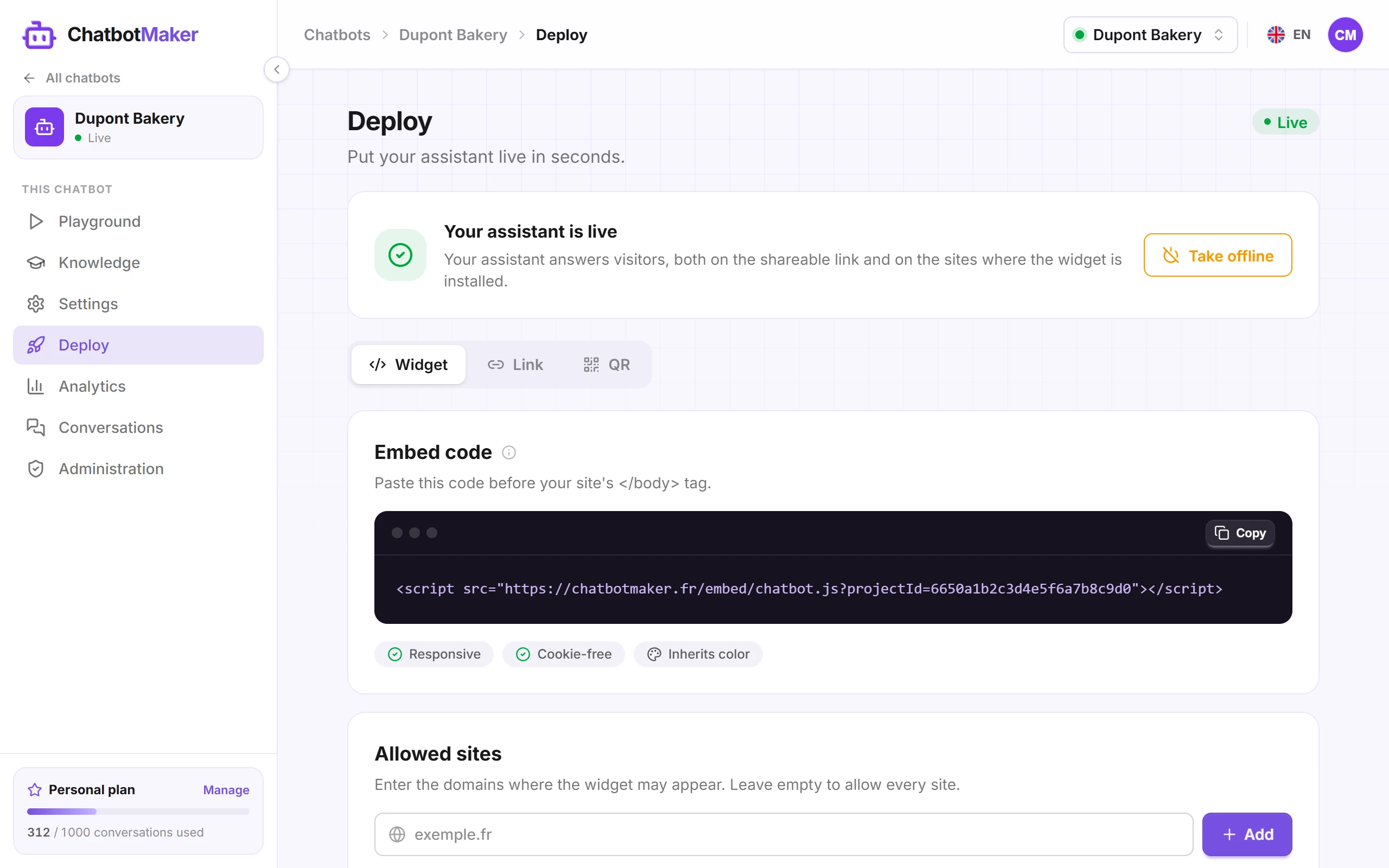
In the Deploy tab, open Widget and click Copy. The code looks like this:
<script src="https://chatbotmaker.fr/embed/chatbot.js?projectId=YOUR_ID"></script>
Paste it on your website
Paste the code right before the </body> tag, in the template shared by all your pages (often the footer). The widget then shows across the whole site.
Is your website built on a platform? Follow its guide:
For another platform, look in its settings for an option such as "custom code", "scripts" or "footer", and paste the code there.
No need to copy the code again when you change your chatbot. Color, avatar, welcome message, launcher style, language: changes made in Settings apply to your website automatically.
The widget adapts to mobile and doesn't use cookies.
Restrict the widget to your websites
By default, the widget works on any website where its code is pasted. To stop another site from using it, add your domains under Allowed sites (Deploy → Widget tab):
example.comallowsexample.comandwww.example.com;*.example.comalso allows every subdomain (shop.example.com,help.example.com…).
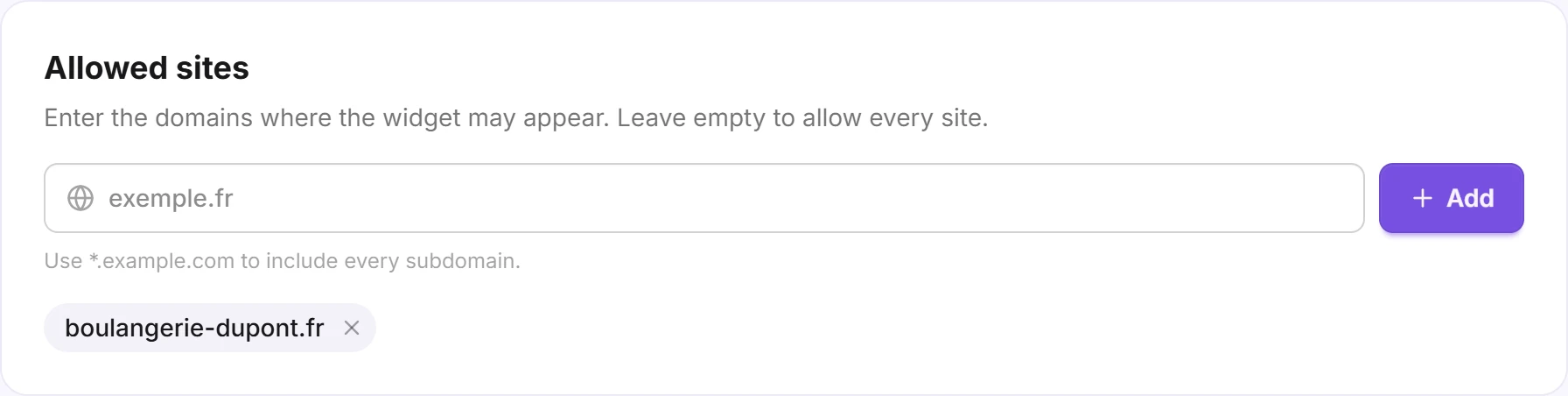
You can paste a full address such as https://www.example.com/contact: only the domain is kept.
As soon as at least one domain is added, the widget only shows on the sites in the list. To allow it everywhere again, remove all the domains. The shareable link and the QR code keep working either way.
Take the chatbot offline
In the Deploy tab, click Take offline. The widget, the link and the QR code stop answering until you click Deploy again. The code installed on your website can stay in place.
No website, or want to reach your customers elsewhere? See Share the chatbot with a link or QR code.
The widget doesn't show?
- Check that the chatbot is Live in the Deploy tab.
- If you filled in Allowed sites, check that your website's domain is in the list.
- Clear your website's cache (cache plugin, CDN…) and reload the page.
- Check that the code is pasted right before
</body>, on every page.