
Test and fix answers
Test your AI chatbot in the Playground, spot bad answers and fix them at the source.
3 min readA chatbot only answers well from what you gave it. The method is always the same: test, spot the answer that's off, find the cause, fix it, then test again.
Ask your questions in the Playground
Open the Playground tab: it shows your chatbot the way your visitors will see it, even if it isn't live yet.
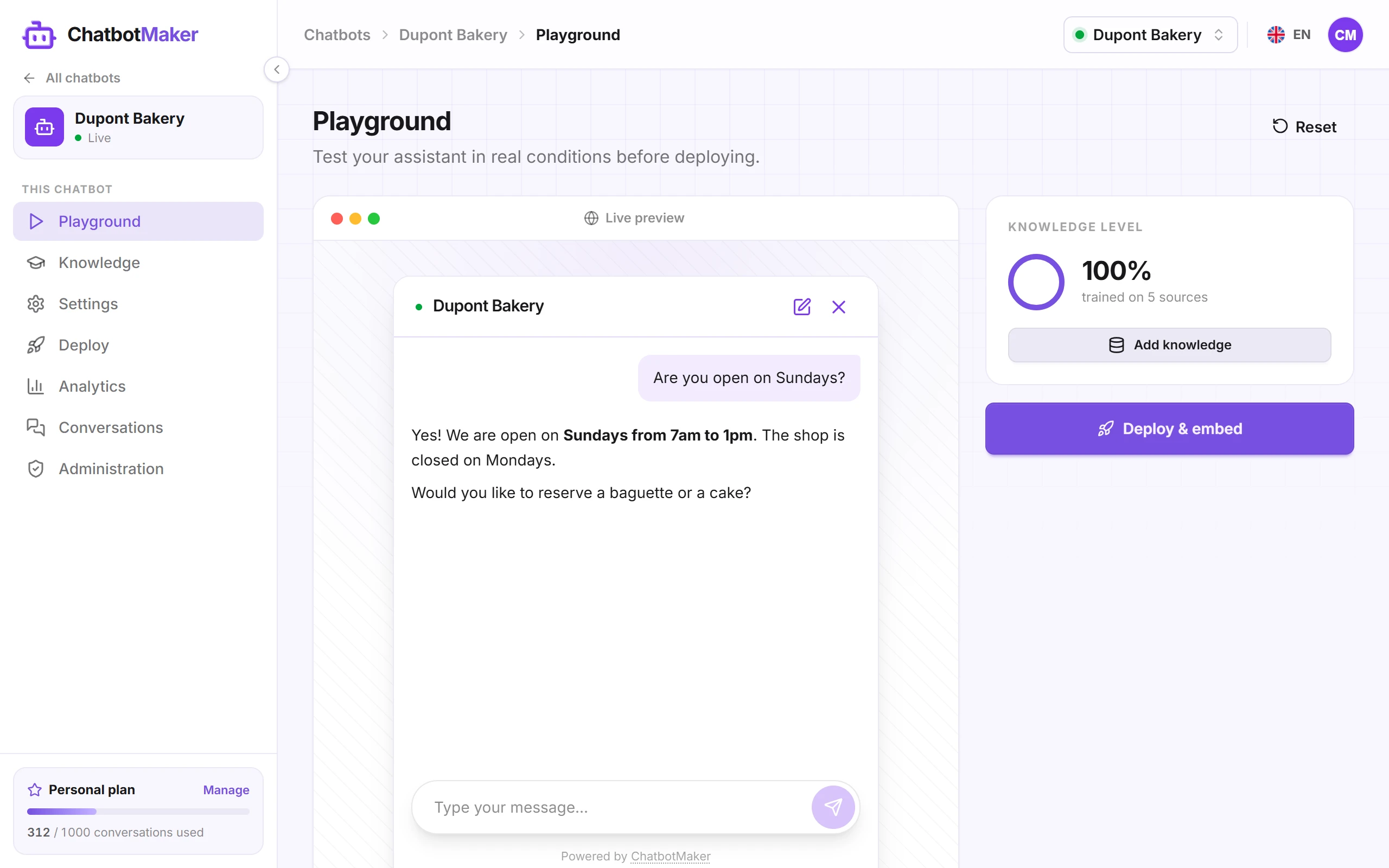
Ask the questions your customers really ask, in their own words. To help, use:
- the questions that keep coming up by email, by phone or in store;
- one question per main topic of your business (prices, delivery, opening hours, returns…);
- an off-topic question and a question your knowledge doesn't cover, to see how it reacts.
After each answer, the chatbot offers Suggestions of questions: click them to explore other topics.
To start over, click the New conversation icon at the top of the chat, then New. The Reset button above the preview reloads the preview without clearing the conversation: use it after changing the appearance in Settings.
Tip: if the message "Training in progress — answers may be incomplete" shows, wait until your sources are Synced before judging the answers.
Find out why an answer is wrong
Each kind of error has its cause, and so its fix:
- It says it doesn't have the information: it isn't in any source. Add it (step 3).
- It misses the point although the information exists: it's buried in a long page or document. Add a targeted question / answer.
- The answer is wrong or out of date: a source has the old version. Update or delete that source.
- Answers change from one time to the next: two sources contradict each other. Keep a single version of the information.
- The content is right but not the style (tone, length, formality): it's the instructions. Adjust Role & personality.
When an answer relies on a page of your website, the chatbot often adds a link to that page: a good clue to find the source to fix.
To check what a source really contains, click it in Knowledge: the panel that opens on the right shows the text the chatbot read. If the information isn't there, or comes out garbled (an unreadable table, an incomplete page), that source is the one to fix.
Fix it at the source
Depending on the cause:
- Missing or poorly found information: in Knowledge, add a question / answer pair written in your customer's words. See Precise answers: questions / answers and raw text.
- Website page changed since it was imported: open the page's ⋮ menu and click Retrain. See Train the chatbot on your website.
- Out-of-date document: delete the old version and import the new one. See Add your documents.
- Source that no longer belongs (old offer, archive page): delete it.
- Tone or behavior: change the instructions in Settings. See Personality, instructions and welcome message.
Fix the source rather than adding a rule like "the price is €30" to the instructions: information kept in the knowledge stays easy to find and update.
Test again
Wait until the changed source is Synced, open a New conversation in the Playground and ask the same question again. Instruction changes apply from the next message.
Good to know
- Playground conversations count toward your conversation quota, just like your visitors'.
- Test regularly, especially after changing your website, prices or documents.
- Once the chatbot is live, your visitors' real questions are in the Conversations tab: the best list of questions to test.