
Track activity: analytics and conversations
Measure how your AI chatbot is used and read your visitors' conversations to improve its answers.
2 min readOnce your chatbot is live, two tabs show you how it is used: Analytics for the numbers, Conversations to read what your visitors really ask.
Read the analytics
Open the Analytics tab.
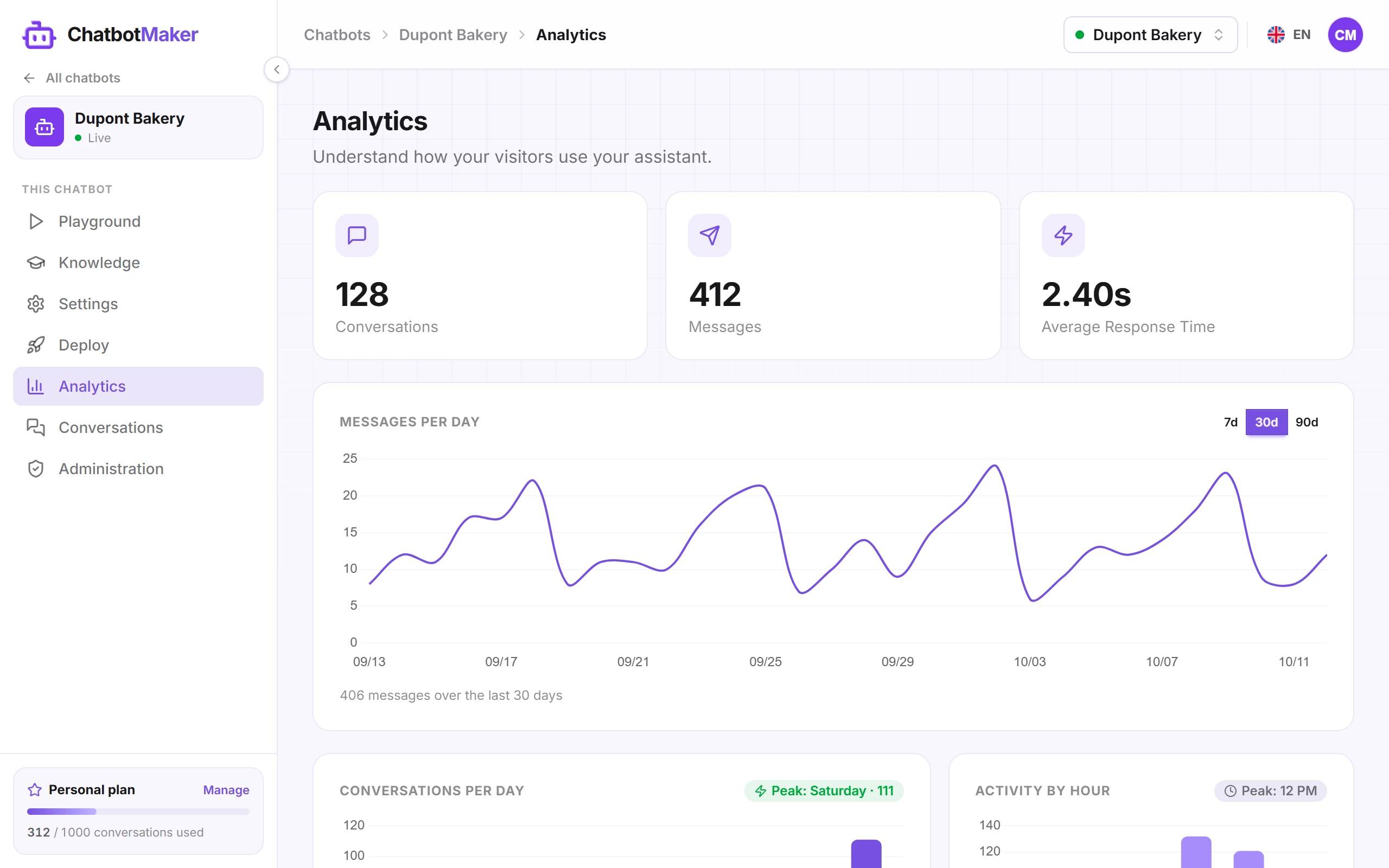
At the top, three counters cover your chatbot's whole history:
- Conversations: the number of chats started by visitors;
- Messages: the number of questions asked;
- Average Response Time: how long, in seconds, the chatbot takes to answer on average.
Below:
- Messages per day shows the trend over the last 7, 30 or 90 days: pick the period at the top right of the chart.
- Conversations per Day breaks activity down by day of the week, and shows the busiest day.
- Activity by hour breaks it down into four-hour slots, in your time zone, and shows the busiest slot.
Until a message has been exchanged, the tab shows that no analytics data is available yet.
Tip: peak days and hours tell you when your customers need you. If activity peaks in the evening or at the weekend, that's often when your team is away: the chatbot takes over.
Read the conversations
Open the Conversations tab. Chats are listed from newest to oldest, each under its first question, with the number of messages and the date.
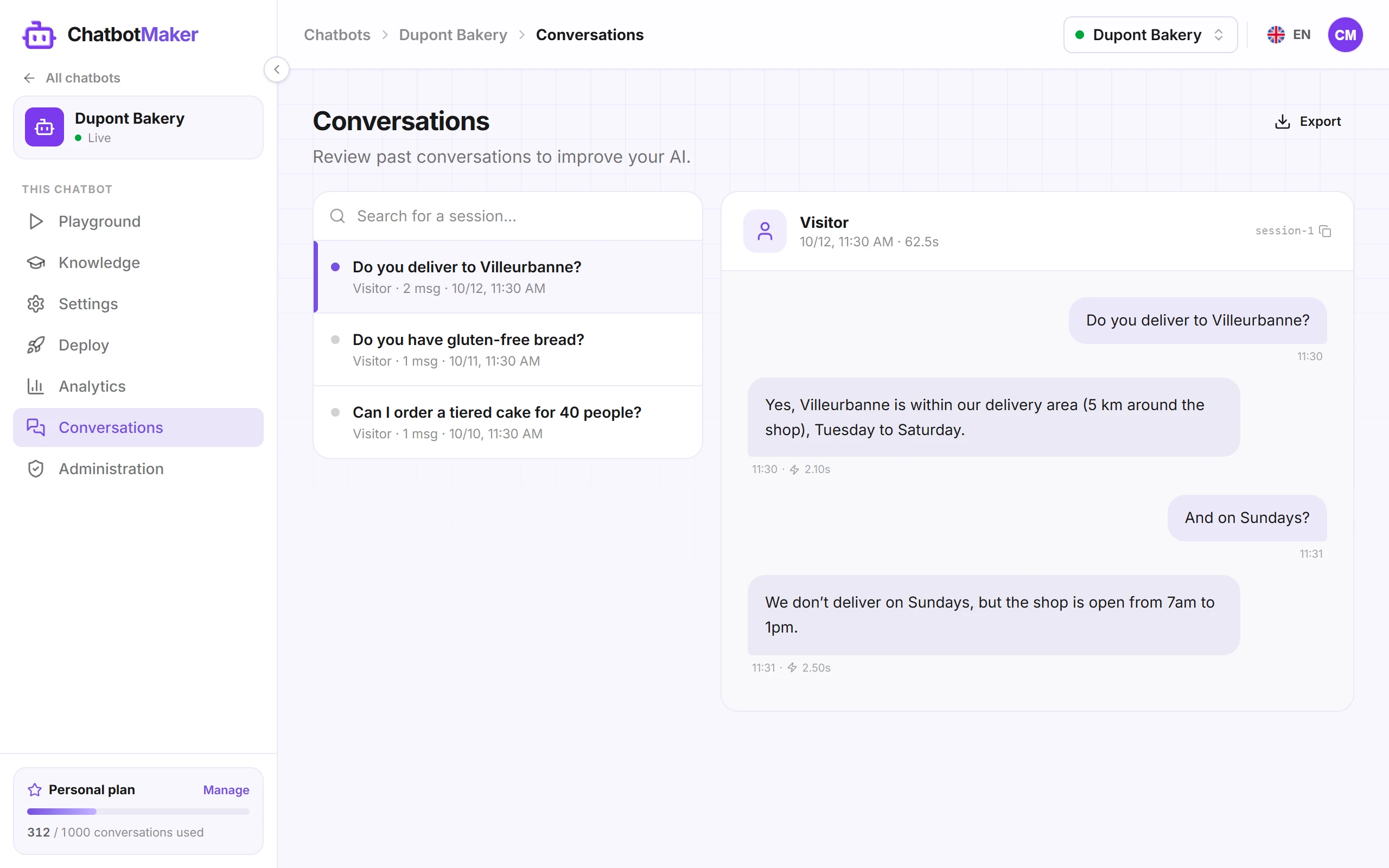
Click a conversation to read it in full, with the time of each message and the chatbot's response time.
- Search for a session... finds the conversations where a question contains a word, such as "delivery" or "refund", across the whole history.
- Export downloads every conversation as a JSON file.
- Previous and Next, below the list, page through conversations when there are many.
Visitors show up as Visitor: the chatbot doesn't ask for their name or email address.
Turn conversations into improvements
Conversations are the best source of ideas to improve your chatbot. Look in particular for:
- unanswered questions, where the chatbot says it doesn't have the information: add it to its knowledge;
- incomplete or wrong answers: find the source at fault and fix it;
- questions that keep coming back: check their answer is precise, with a dedicated question / answer if needed;
- unexpected topics: they can reveal a gap on your website itself.
The step-by-step method is in Test and fix answers.
Good to know
- Your tests count too: Playground conversations show up in the analytics and in the Conversations tab.
- Review regularly, for example every week at first, then every month.