
Work on a chatbot as a team
Invite your colleagues to manage your AI chatbot with you: knowledge, settings, deployment and conversation review.
2 min readYou don't have to manage your chatbot alone. Invite your colleagues: they can add to its knowledge, adjust its settings and review conversations from their own account.
Check that your colleague has an account
Your colleague first needs a ChatbotMaker account. If they don't have one yet, ask them to sign up at chatbotmaker.fr with the email address you'll use to invite them.
Invite them
- In your chatbot, open the Administration tab.
- Under Invite a collaborator, enter their email address.
- Click Invite.
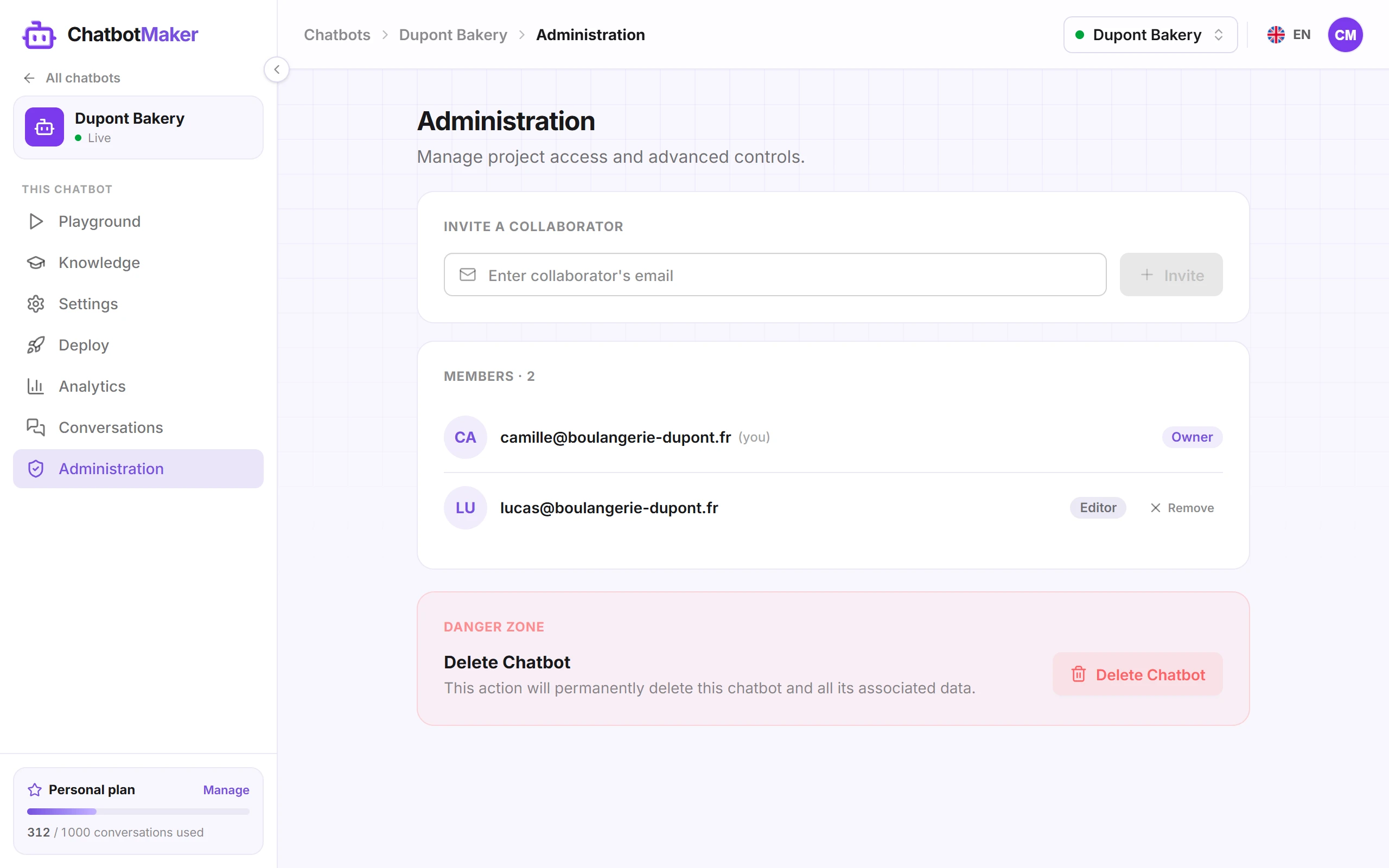
Your colleague shows up in the Members list, and the chatbot shows up in their My Projects list the next time they log in.
If a message says the user is not an active ChatbotMaker user or was already added, check that the address exactly matches the one on their account.
Understand the roles
The Members list shows a role for each person:
- Owner: the person who created the chatbot;
- Editor: the people invited.
Every member can manage the chatbot: knowledge, settings, deployment, analytics, conversations and inviting other colleagues. Only the owner can also:
- remove a member, with the Remove button on their row;
- delete the chatbot, in the Danger Zone of the Administration tab.
The owner can't be removed from the chatbot, not even by themselves.
Leave a chatbot
An editor who no longer wants to take part can leave on their own: in the Members list, they click Leave on their own row. The chatbot then disappears from their My Projects list.
Good to know
- An invitation covers a single chatbot. To share several chatbots, invite your colleague to each of them.
- Conversations count toward the owner's plan, whichever member set up the chatbot.
- Trainings count for whoever starts them: each member uses the training quota of their own plan.
- Deleting the chatbot is permanent: in the Danger Zone of the Administration tab, it also erases its conversations, knowledge and statistics, for every member. Only the owner sees this option.