
Subscription and usage
Track your conversations and trainings, understand each plan's limits and manage your ChatbotMaker subscription.
3 min readYour plan sets how many conversations your chatbots can hold and how many trainings you can start. This guide explains how to track your usage, what happens at the limit and how to change plans.
Track your usage
At the bottom of the left menu, a panel shows your plan (for example Personal plan) and the number of conversations used in the current period.
For details, click Manage in that panel, or Subscription in your avatar menu at the top right.
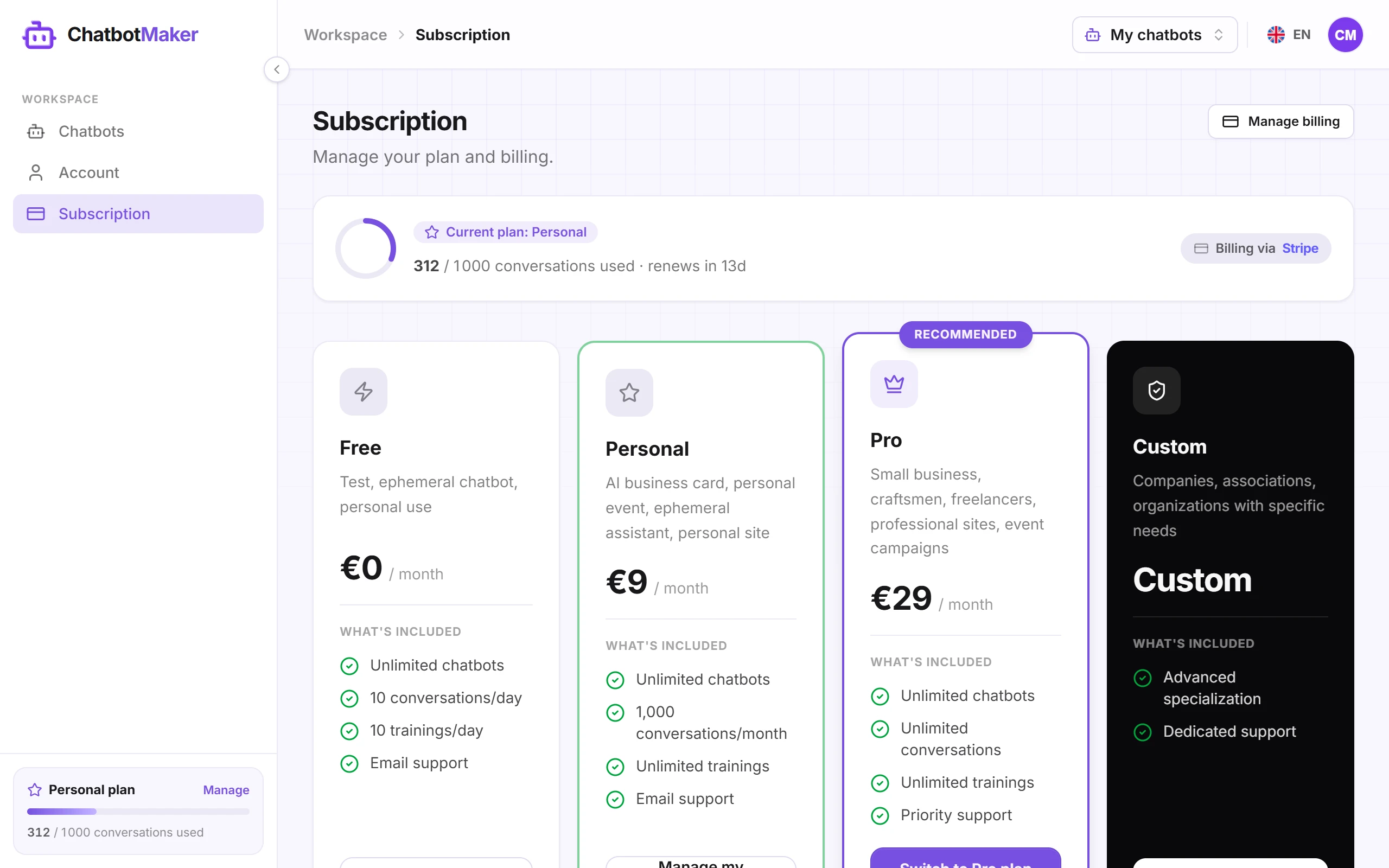
At the top of the Subscription page you see your current plan, the conversations used and the number of days until they renew.
Understand what is counted
- A conversation starts when a visitor sends their first message. Later messages in the same conversation aren't counted again. Playground conversations count too.
- All your conversations add up: the counter covers every chatbot you own, including those managed with colleagues.
- A training is one click that starts learning: Confirm, Add, Upload, Save or Retrain in the Knowledge tab, however many sources it covers.
Conversation limits by plan:
- Free: 10 conversations per day, reset every day;
- Personal: 1,000 conversations per month, reset on the 1st of each month;
- Pro: unlimited conversations, within fair use.
Paid plans also read the images in your documents (Word, PowerPoint, Excel, PDF): the text and tables they contain are transcribed and other images are described, up to 20 images per file. On the Free plan, only the documents' text is read.
The number of trainings also depends on the plan: the details are on each card of the Subscription page, and prices on the pricing page.
What happens at the limit?
- Conversation limit reached: your chatbots turn down new conversations until the reset. Visitors see a message saying the assistant is temporarily unavailable.
- Training limit reached: a message warns you in the Knowledge tab, and new trainings are blocked until the reset. Sources already synced keep working.
Tip: if your chatbot is live on your website, keep an eye on the counter during busy periods. Moving to a higher plan lifts the limit right away.
Change plans
On the Subscription page:
- Upgrade to Personal or Upgrade to Pro opens a secure Stripe payment page. The plan is active as soon as payment goes through.
- If you already have a subscription, Switch to Personal plan or Switch to Pro plan takes you to the Stripe billing portal to change plans.
- Custom: for specific needs, click Contact us.
Manage billing and cancel
Click Manage billing to open the Stripe portal: there you can change your payment method, find your invoices and cancel your subscription.
After cancelling, your plan stays active until the end of the period already paid: the Subscription page shows the end date. The Reactivate button undoes the cancellation before that date. After it, your account moves back to the Free plan; your chatbots and their knowledge are kept.